
360fly-HD User Guide (IOS )
Getting Started
Congratulations on landing your new 360fly HD camera.
This powerful camera and its apps make you part of an emerging community of visual storytellers and explorers, one that is fundamentally changing the way we experience and capture the world. Join them now and begin sharing your best 360° videos, ideas, and inspiration at www.360fly.com.
Charging the Battery:
To charge your camera, insert the USB cable into a USB outlet adapter rated at 1.5A to 2.1A (most tablet charger adapters) and plug it into the 360fly HD power cradle.
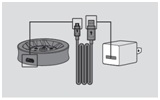
Next, simply place the camera on the charger base. For best results, charge your camera while it’s powered off.
While your camera is charging, its LED indicator will flash green. When fully charged, the camera LED will remain solid green. It is recommended you charge your camera for at least 30 minutes prior to its first use.
When your camera battery is low, the LED will display a light purple color. Be sure to charge your camera before using it when the LED is light purple.
Powering Up:
Remove the camera from its power cradle and turn it on by holding the OnePush button down for four seconds.
When powering up, the camera will vibrate three times and the LED will flash blue. After completing the power-up sequence, the LED will display a solid blue color, indicating that your camera is on and ready to fly.
You can also use the OnePush button to power down your camera by holding the button down for four seconds. The camera will vibrate four times to indicate that it is powering down.
Camera Care and Storage:
A clean lens means clearer footage. Your 360fly HD camera lens can be cleaned using a soft cloth. Lens solution, water, or isopropyl alcohol can be added for additional cleaning.
We highly recommend storing your 360fly HD camera inside a protective case to help protect its lens from scratching, chipping, or other damage.
The App Powering It All
Download the 360fly App:
The 360fly app is key to capturing your entire world in 360° HD video on your Apple iOS® smartphone. Just search “360fly” in App store and download the free 360fly app to your mobile device. Remember, the app allows your mobile device to serve as your camera’s remote control and viewfinder, giving you the power to capture, edit, and share clips on the fly.
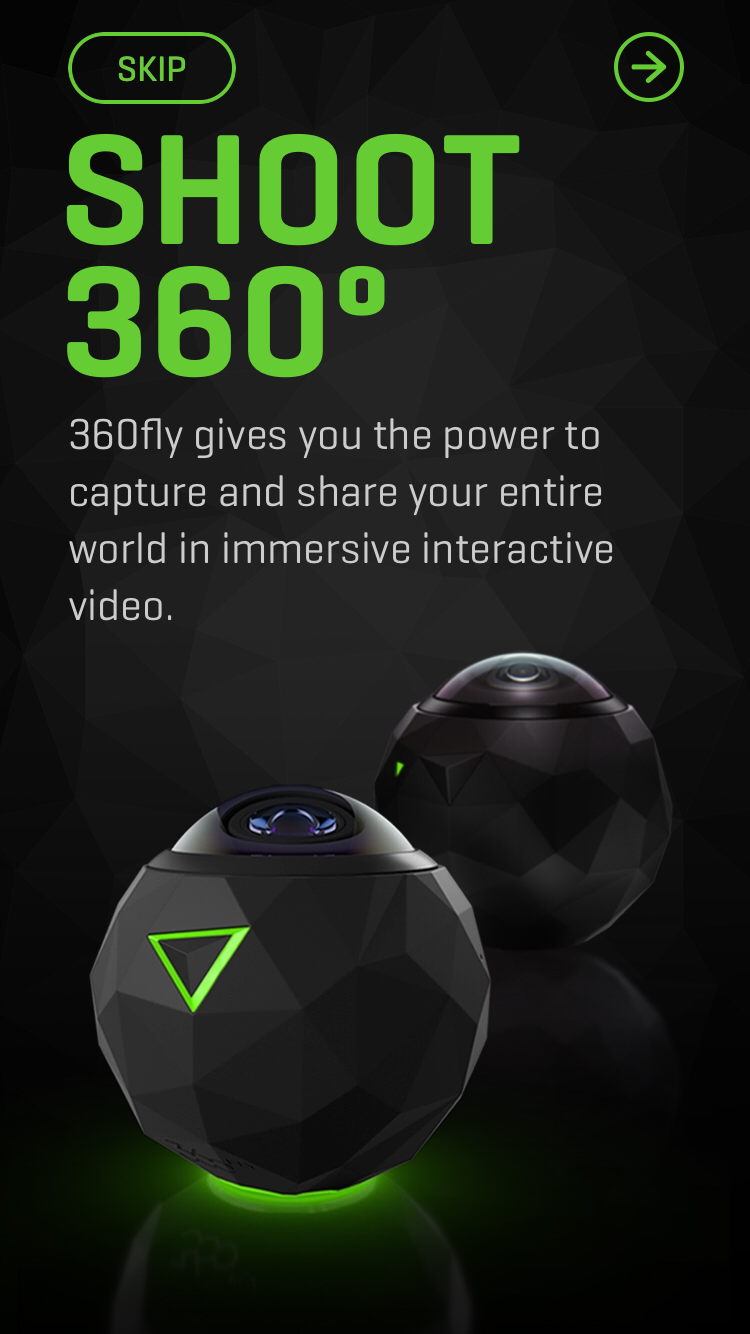
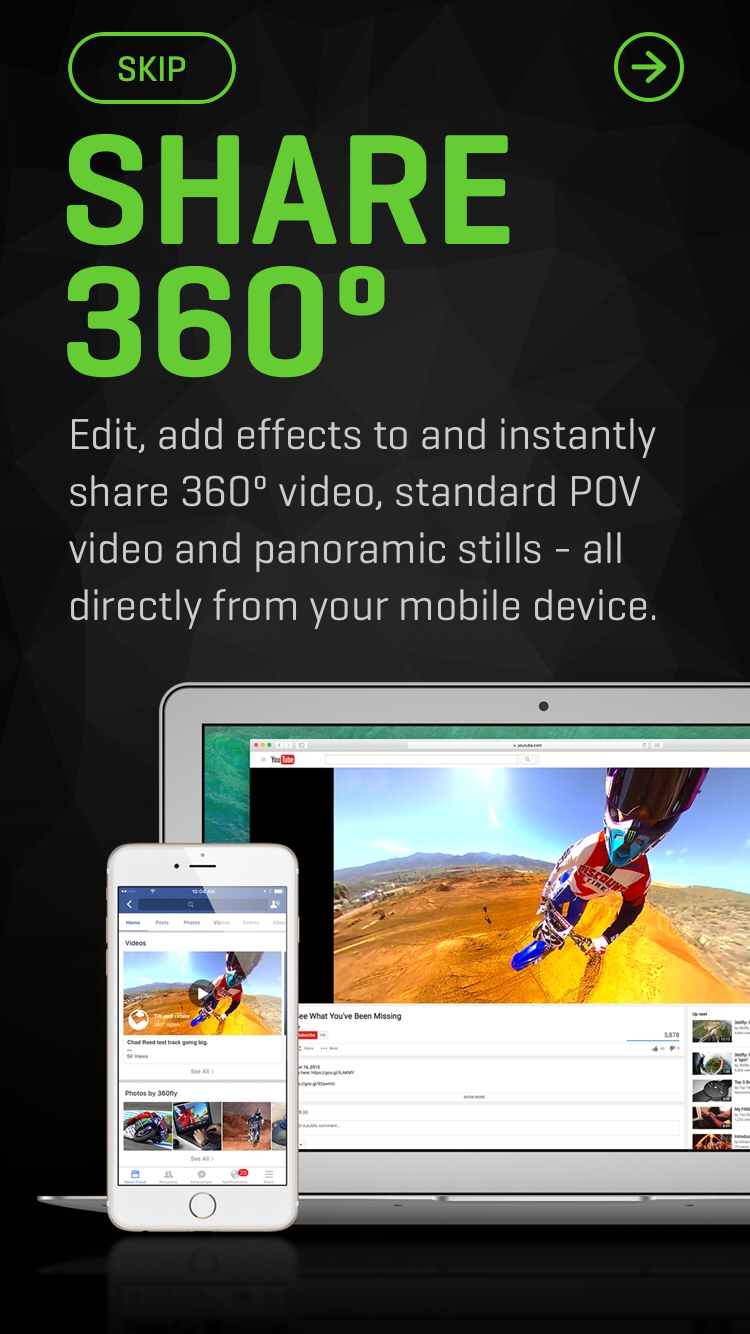
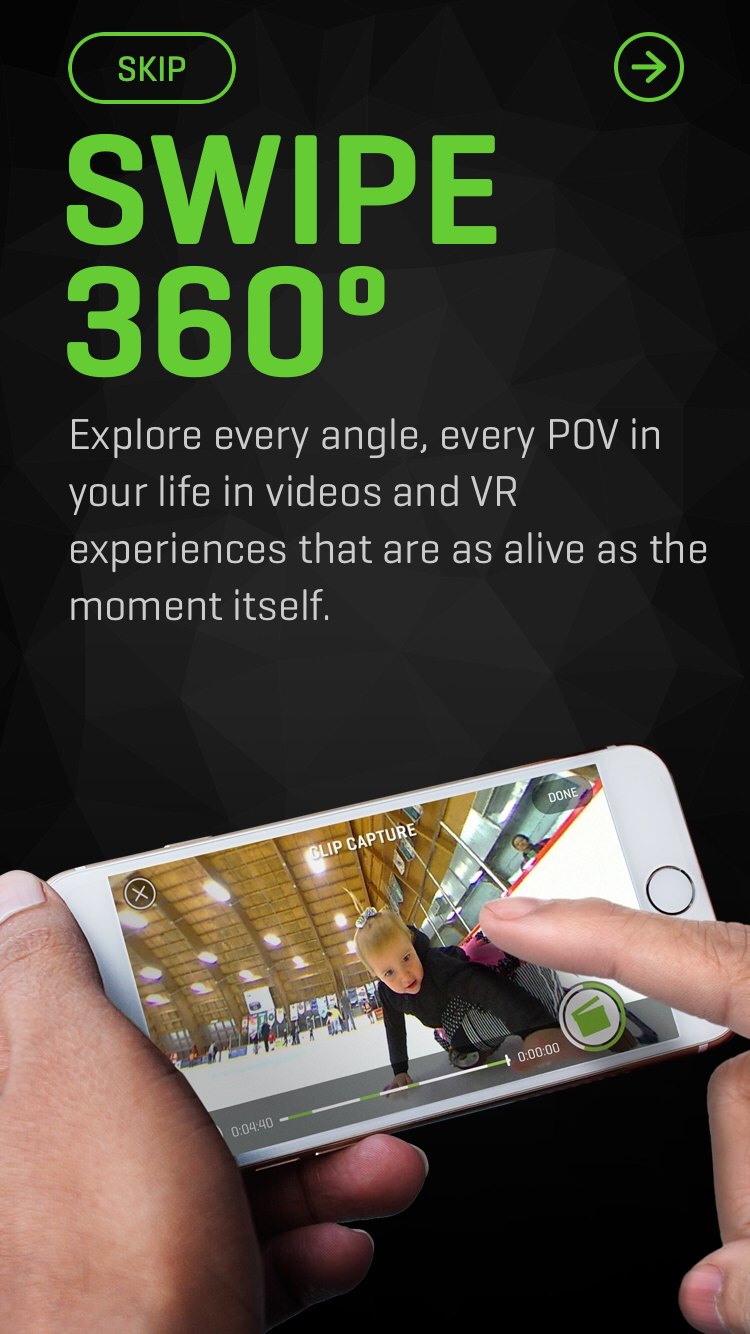
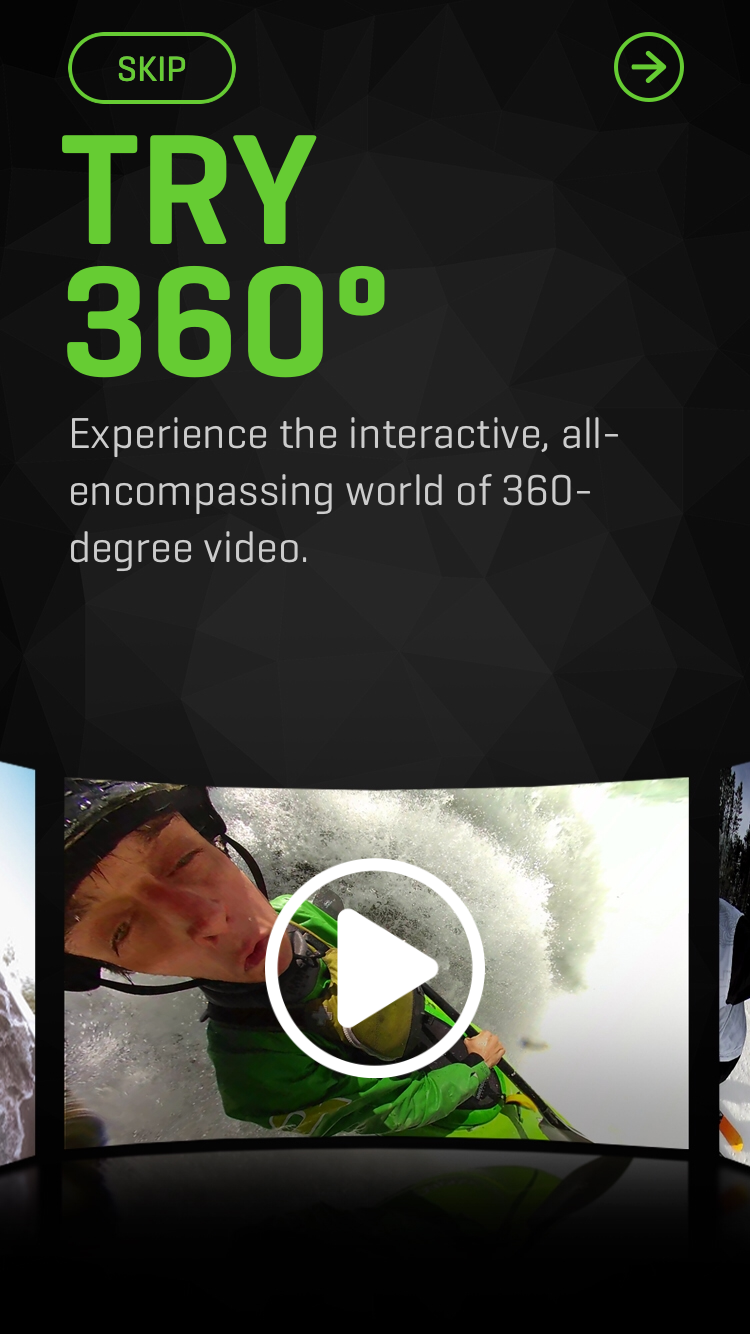
The first time launching the app, you will see a brief Shoot, Share, Swipe tutorial on recording, editing, exploring and sharing 360° videos with your new camera and app. Check it out. It’s well worth your time.
Create Your 360fly Account:
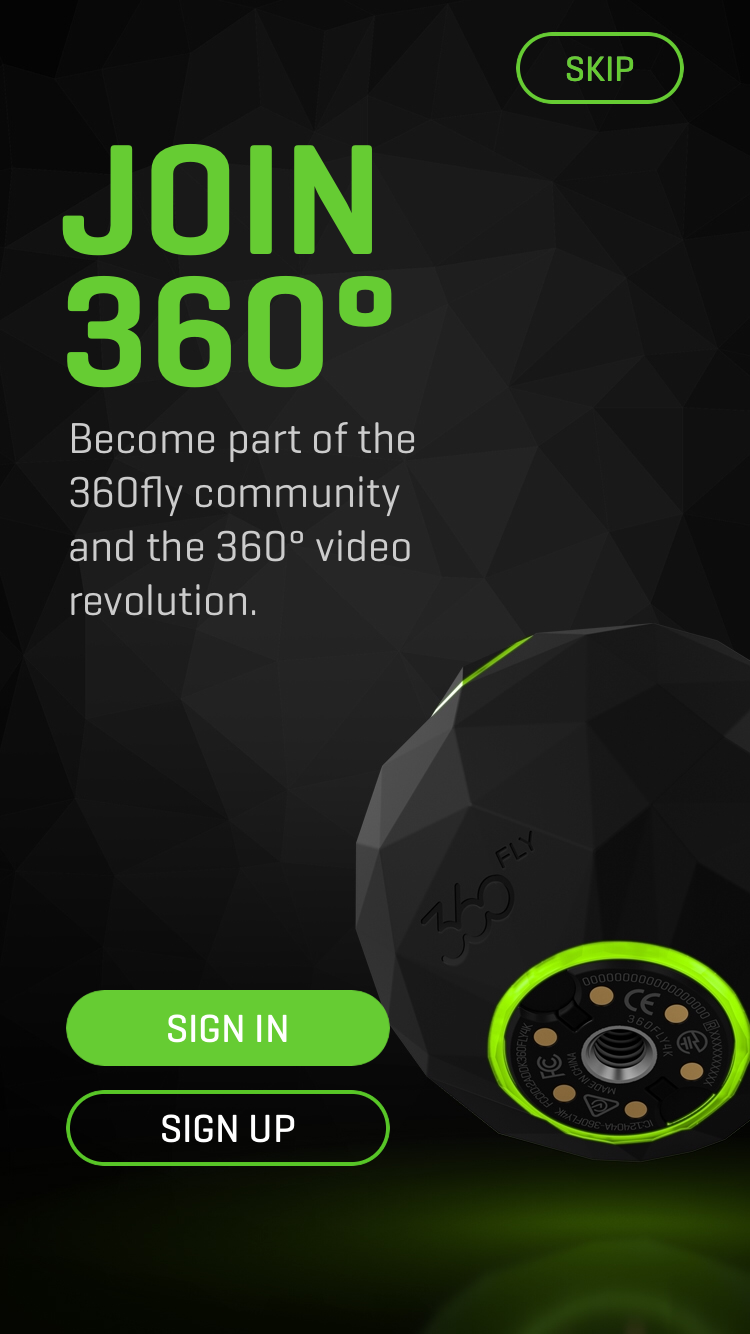
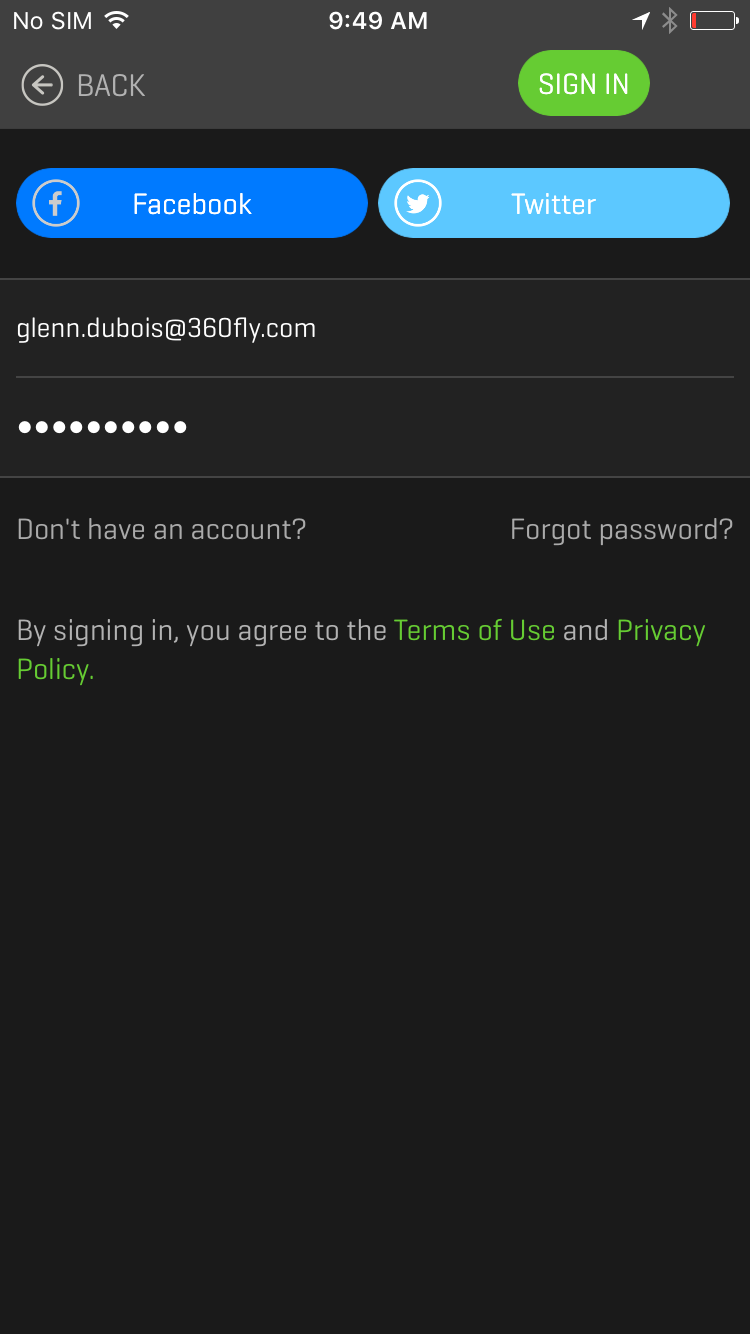
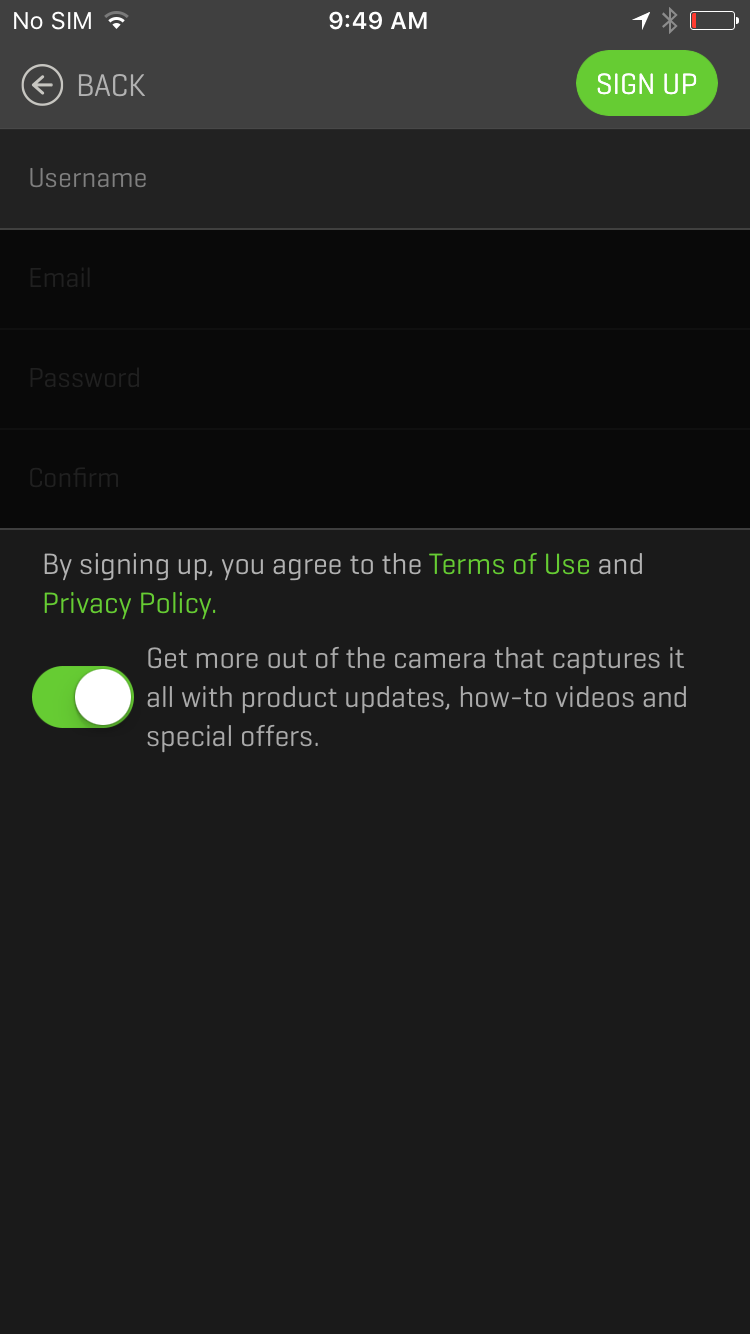
On the first app launch, you’ll also be prompted to build your 360fly.com profile. You can select the “Sign In” option to activate via your existing social media account, or you can choose to “Sign Up” for a unique 360fly.com account by entering a new username, email address, and setting a password for your new profile. Signing in with your social media accounts will allow you to instantly share and post videos with the click of a button. You can also choose to skip the account creation step by selecting “Skip” in the top-left corner.
Connecting to the 360fly HD:
The application will lead you through a step-by-step guide for establishing a Bluetooth LE and Wi-Fi connection to your camera.When prompted, accept the Bluetooth pairing request within the app to confirm your connection between your Apple device and your 360fly camera.
Note: A Wi-Fi connection is required to view your camera’s live feed and stored content. Check your device settings to ensure that Bluetooth and Wi-Fi are both enabled prior to connecting.
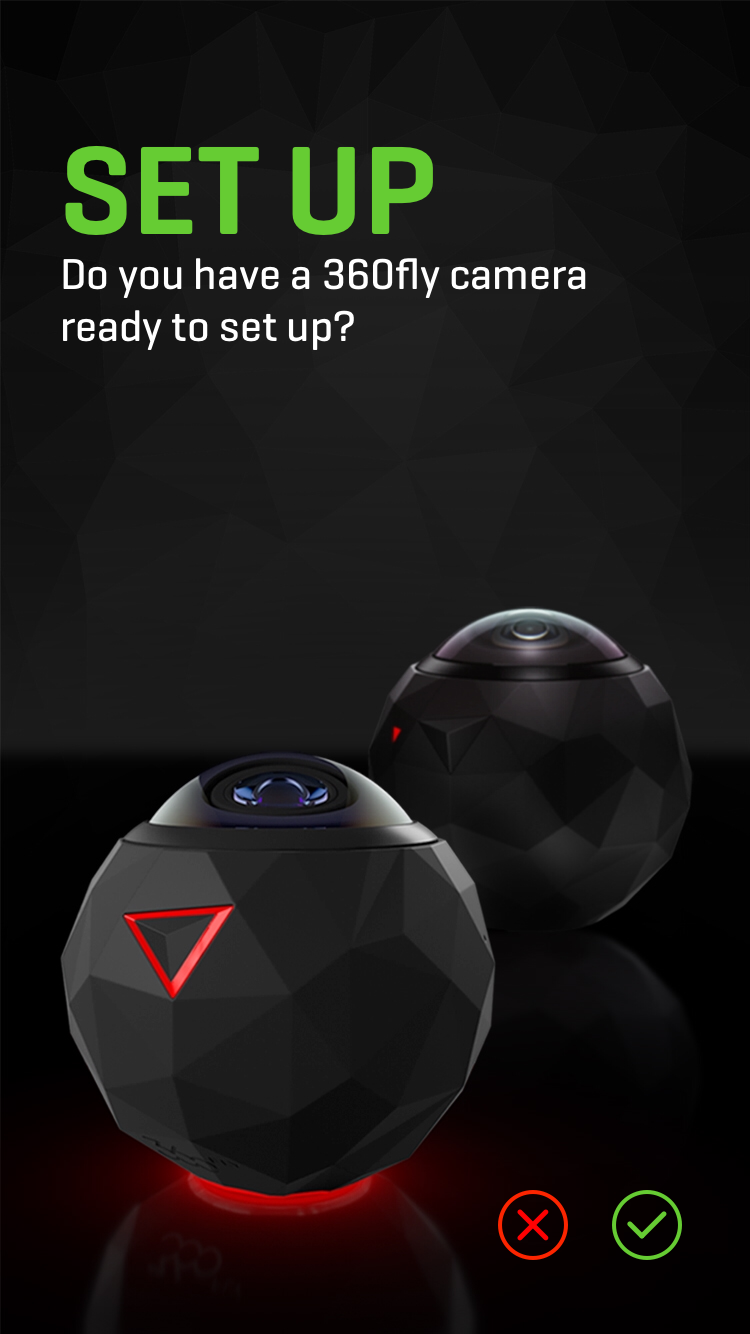
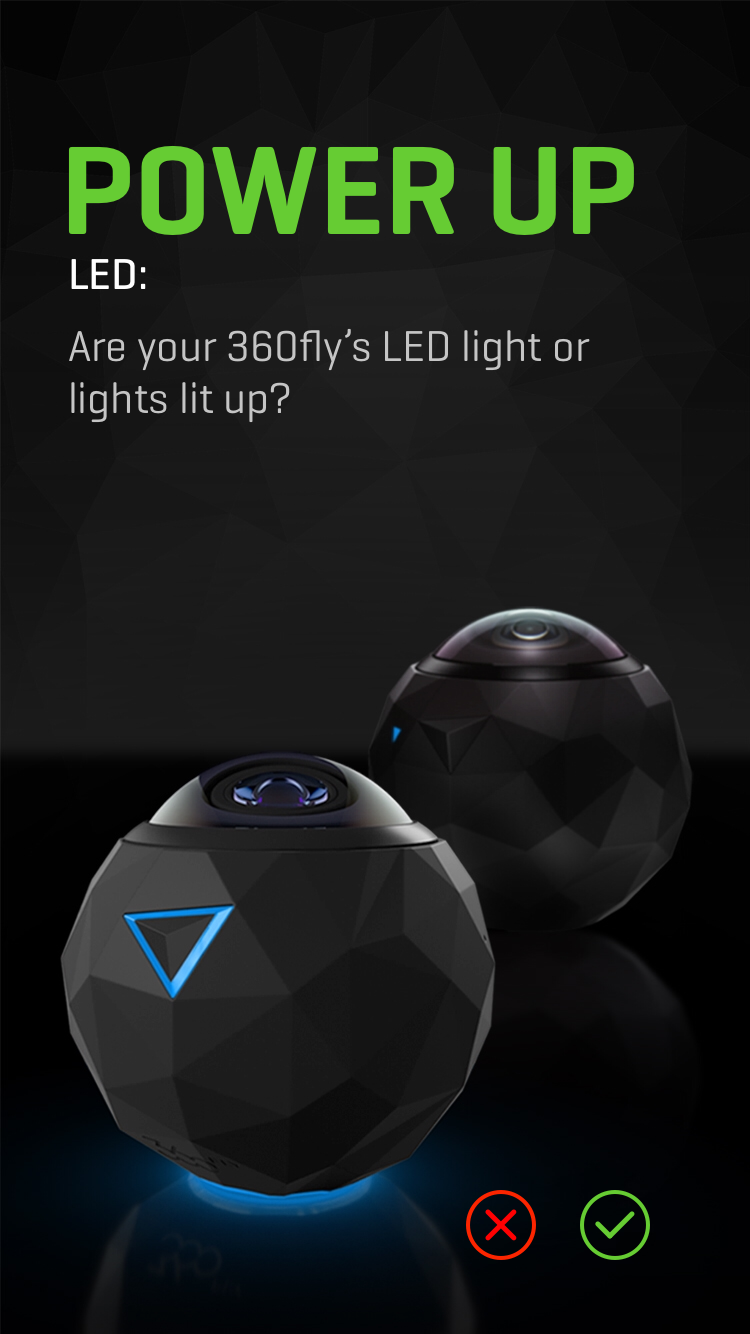
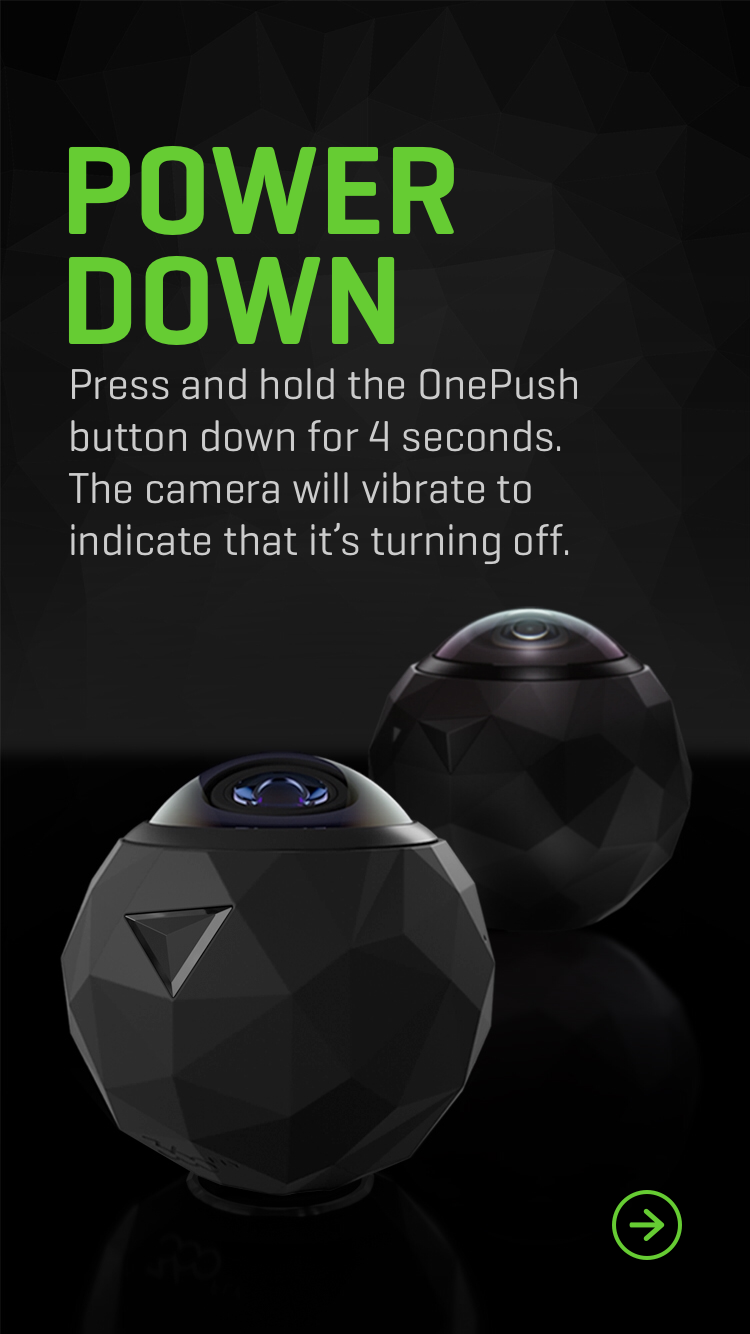
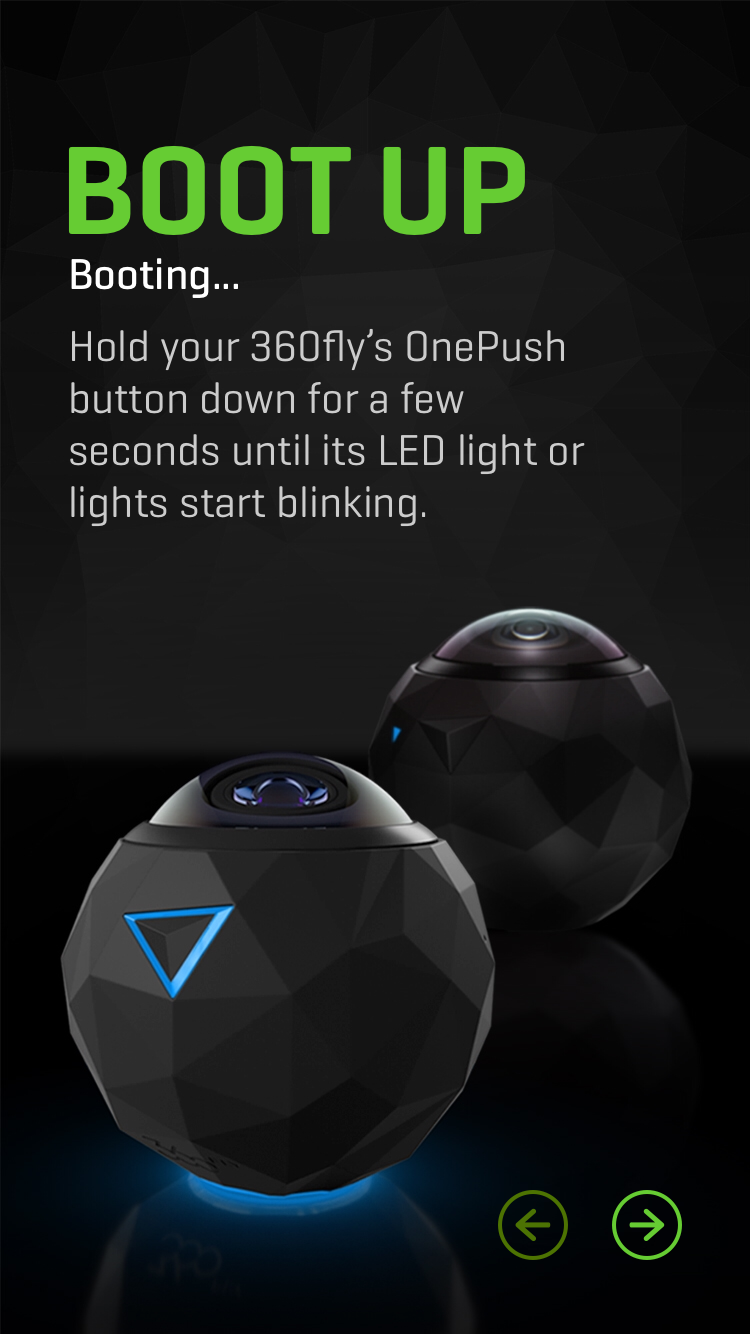
Once the power up sequence is completed, your 360fly HD will automatically enter pairing mode with your mobile device. For best results, place your phone about three inches away from your camera in order to get a good strong signal. Once the devices are paired, it’s time to give your camera a unique name and password.
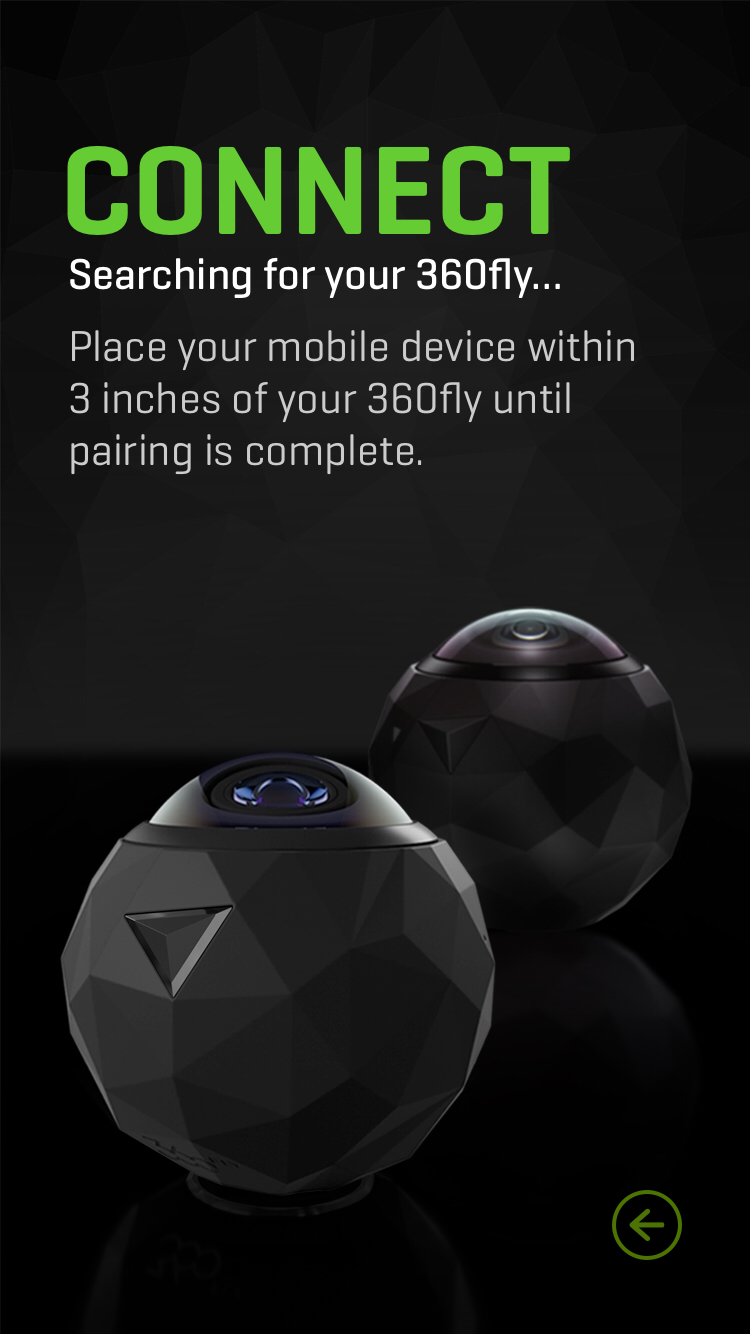
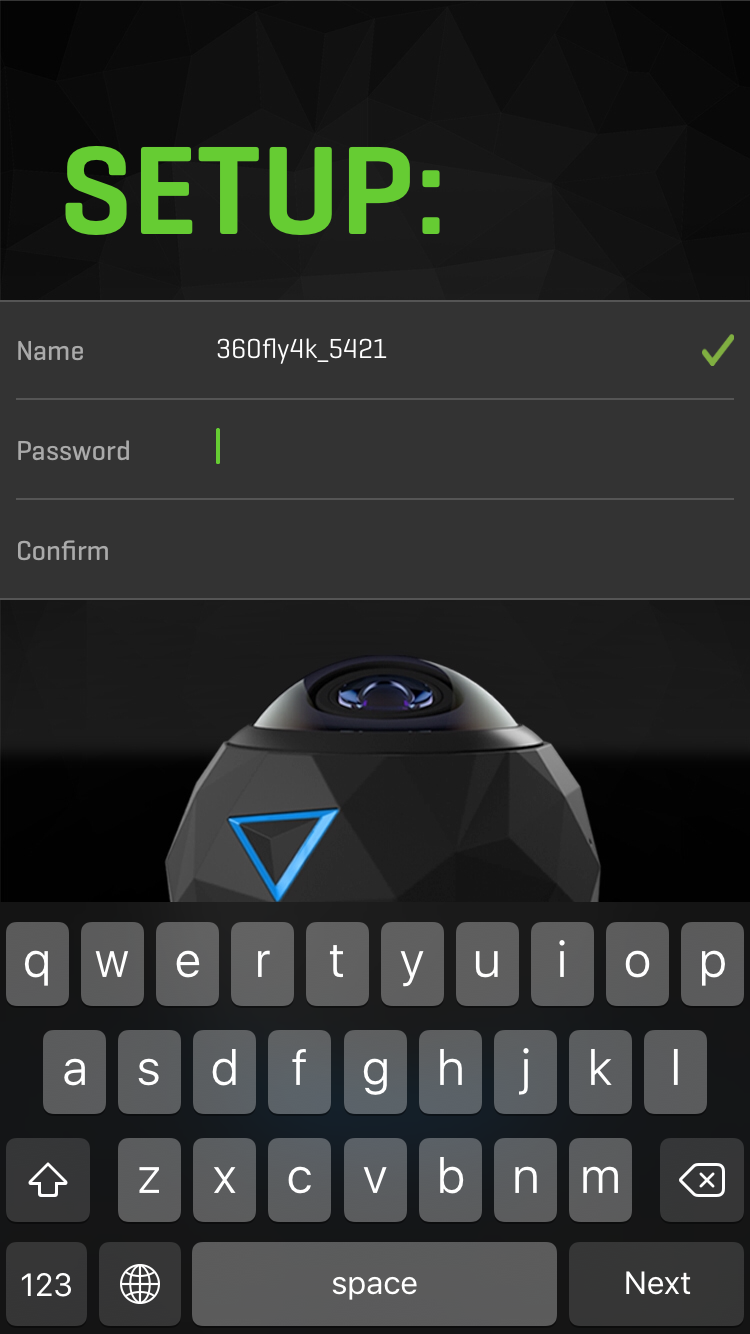
In order to get full functionality from your 360fly HD, you need to connect your device to your camera via Wi-Fi. To complete this final step, exit your app and access the settings menu on your iOS device. Select Wi-Fi and search for your camera under the name that you have just assigned to it. You’ll also need to enter the password you set for the camera to connect.
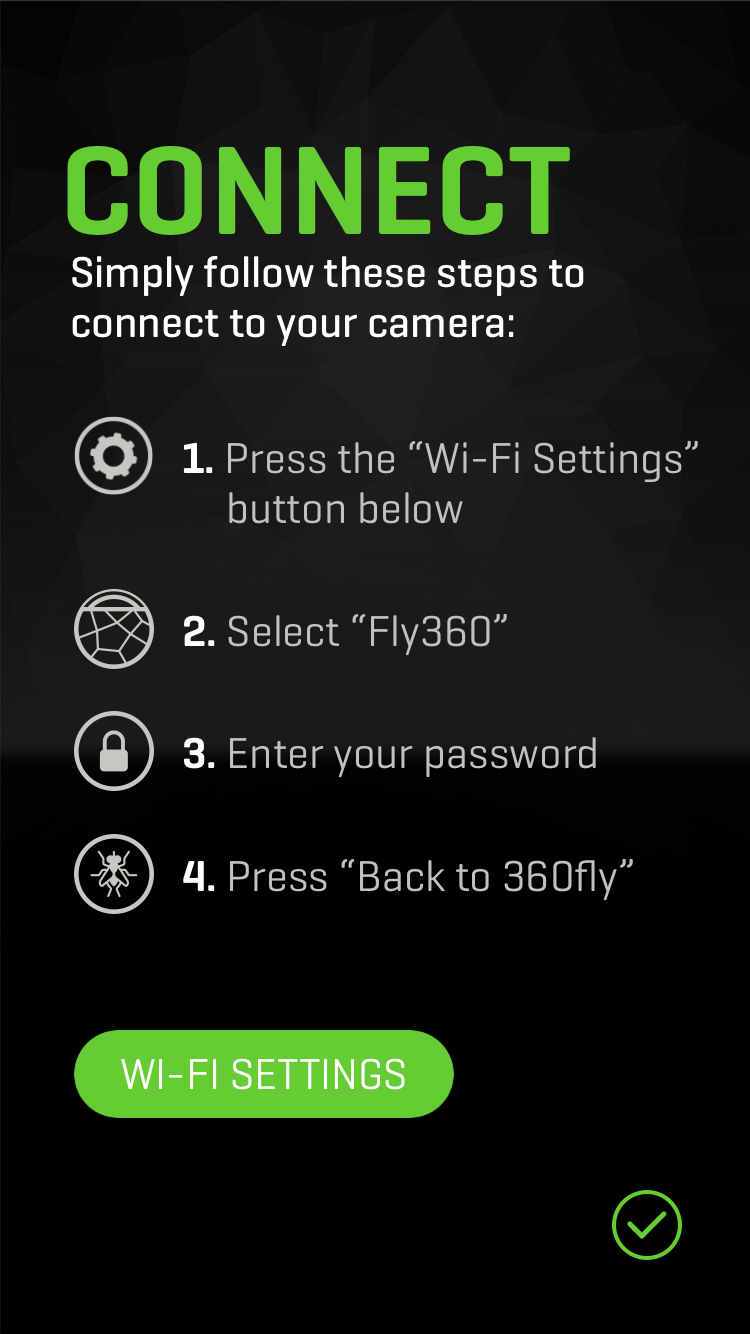
When complete, exit your settings menu and re-launch your 360fly app. Congratulations! You’re all connected and ready to start flying in 360° HD!
Note: Your camera may require a firmware update prior to initial use. If a firmware update is available, your application will automatically walk you through the steps to download and transfer the most up-to-date software load to your camera.
360fly App Main Menu
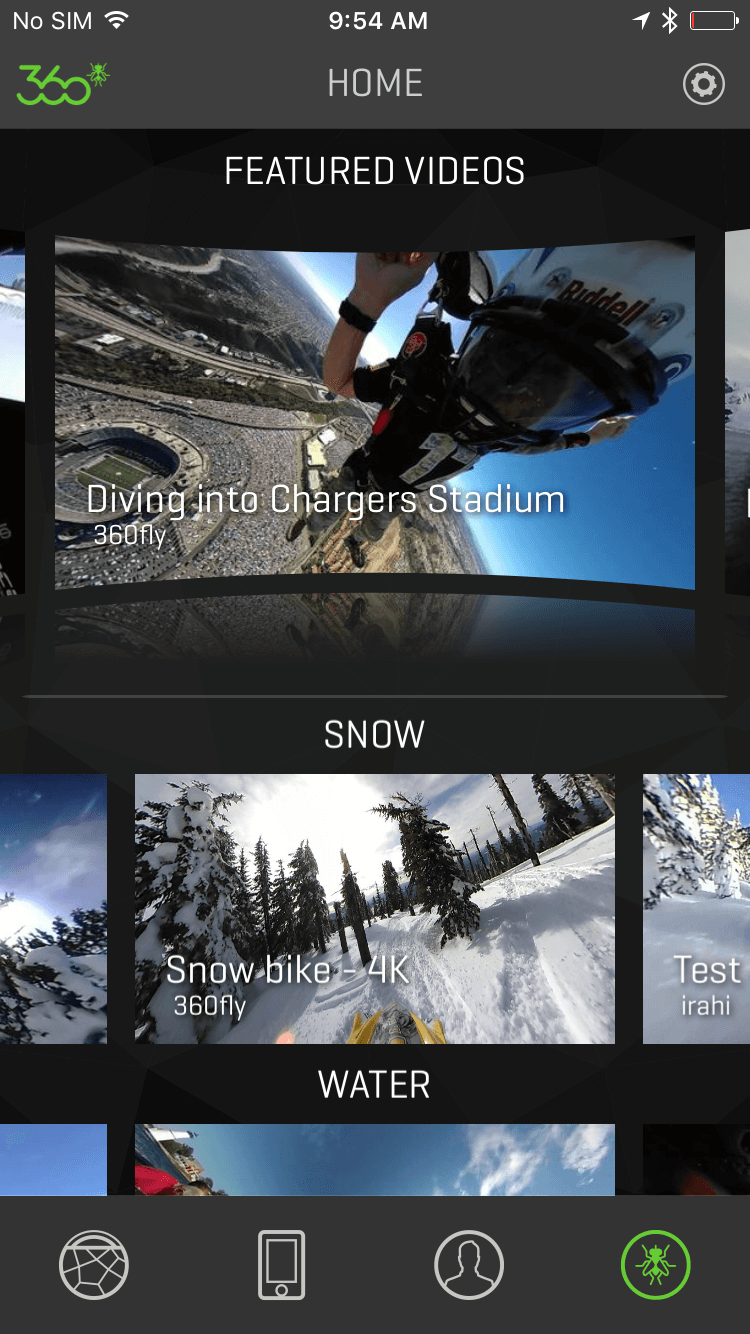
The 360fly app homepage is the hub of the 360° video world. It starts with "Featured Videos" where you can explore the most epic videos from the 360fly community around the globe. You can also view the latest video highlights from a range of categories, including "Snow", "Water", "Land", "Travel", and "Air", where the latest trending videos vie for a coveted "Clips of the Week" spot. The "User Generated" section lets you share your 360° vision with the entire 360fly family and anyone with the 360fly app. Be sure to check in often—and remember to tag your best edits shared across social media using #360fly and #MissNothing. At the bottom of the homepage screen, you can select from four options:
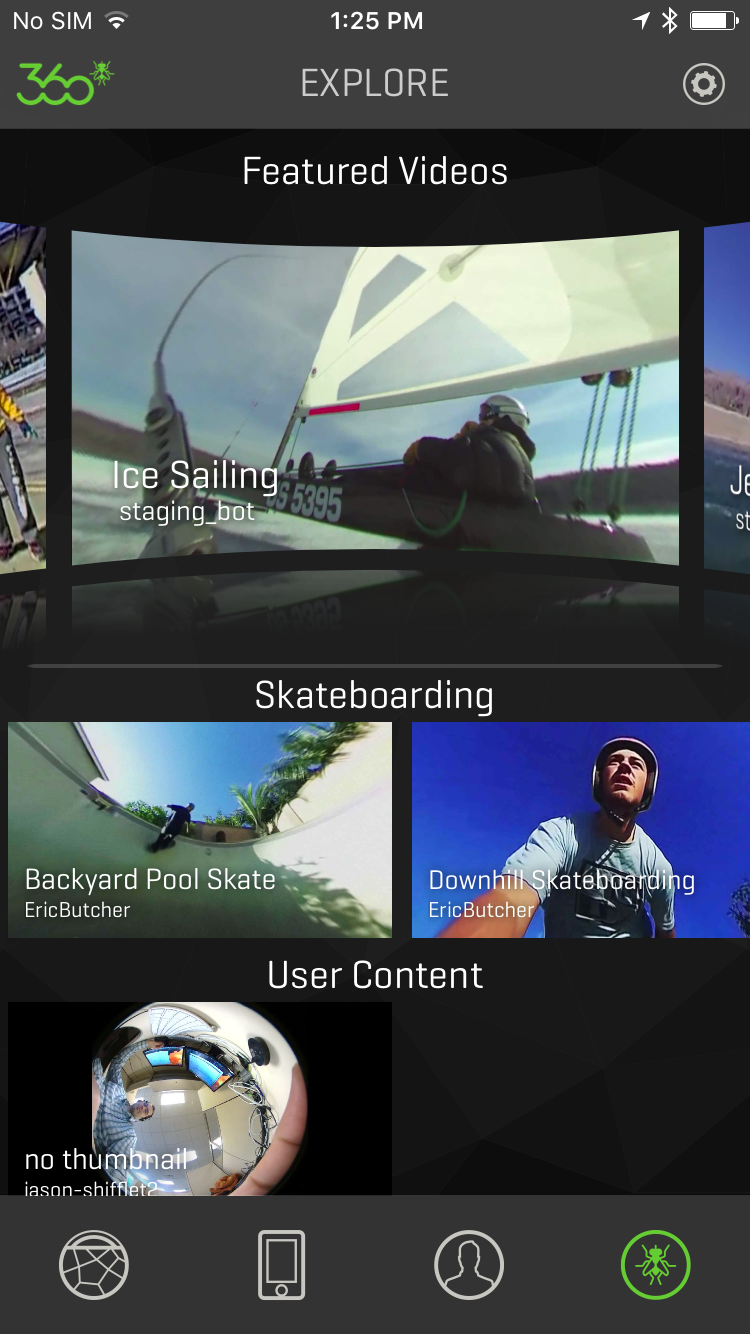
Camera: Select the  icon to connect to your 360fly camera. Once connected, you will have full control of all of your camera’s features and functions through your smartphone. You can also view and download all of your video files stored on your camera’s memory.
On My Phone: Select the  icon to access all of your videos, clips, and photos stored on your smartphone. Review, edit, and playback your content anytime/anywhere without the need to connect to the internet or your 360fly camera.
Explore: Select the  icon to browse public content uploaded by other 360fly users. Select and view featured videos, along with hosted content spanning a variety of interesting topics and categories. Be sure to check back regularly to view the latest exciting uploads from other 360fly users.
Profile: Select the  icon to view all of the video content uploaded to your 360fly account. You can access and playback any videos you’ve uploaded from anywhere you have an internet connection—with or without connecting to your 360fly camera. You can also choose to make any of your videos public and share your experiences with friends and other 360fly users. To make changes or edits to your account, just tap the edit profile option at the top of the screen.
Note: An active internet connection is required to access and view content.
Camera Home Screen
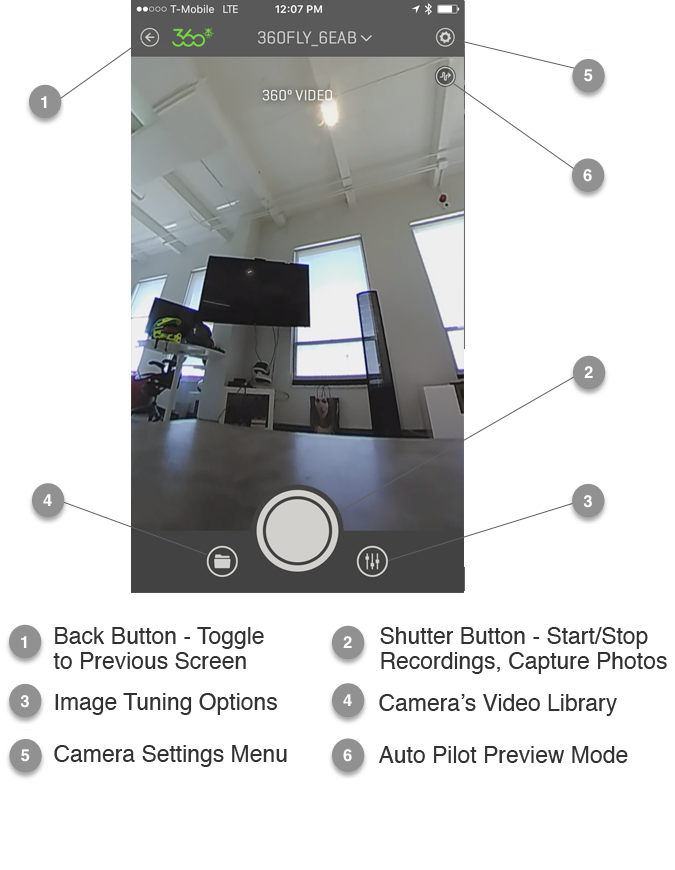
Once your smartphone is connected to the camera, the app’s home screen gives you full access to all camera controls, modes, and settings options.
Recording Video
Recording 360° videos with the 360fly app is quick and easy. Simply tap the white record button  to start capturing. The center of the capture button will turn red and your camera will simultaneously vibrate while its LED turns from blue to red.
To stop recording, tap the red record button  . Your camera will vibrate twice and the LED will switch from solid red to blue, indicating that your recording has ended.
Recording Without the App
If you don’t have access to the 360fly app on your mobile device, you can record videos directly on your camera. Simply press the OnePush button on your camera to launch a 360° recording. Your camera will vibrate and the LED will turn from blue to solid red, indicating that your camera is now recording. To stop recording, press the OnePush button again.
Note: The default recording mode for 360fly HD videos is pre-set at a resolution of 1504x1504 at 30 frames per second.
Accessing Your Camera’s Stored Files
While connected to "camera" home screen, select the “On My Camera” icon  to view your camera’s storage library. This selection will display all of the video files stored within your camera’s internal memory.
To view a video, simply tap on the thumbnail image of your desired file, and the application will automatically launch your file within its video player.
To download a video or image directly to your smartphone, simply tap the download icon  . This will copy your file directly into your phone’s gallery.
Note: Storing your video files onto your phone’s gallery will allow you to play back content without the need to connect your device to your 360fly camera. Additionally, the application’s video editing tools are (only) available for content stored in your phone’s gallery.
To delete a file, swipe left on the thumbnail image and tap the trash can icon. The app will request confirmation that you would like to delete the file before it is permanently removed from the camera’s memory storage.Tap the “Trash” icon to confirm and delete the selected file.
Video Playback
Tapping a video thumbnail image within your camera’s library will automatically launch the 360fly player. Once the video uploads, you can pan the angle of view by swiping across the screen. You can also pan using your device’s built-in gyroscope function by turning your phone in the desired orientation.
To zoom in during playback, simply pinch two fingers together on your device’s display until you reach the desired zoom level. To zoom out, expand two fingers across the display and release when you have reached the ideal zoom level.
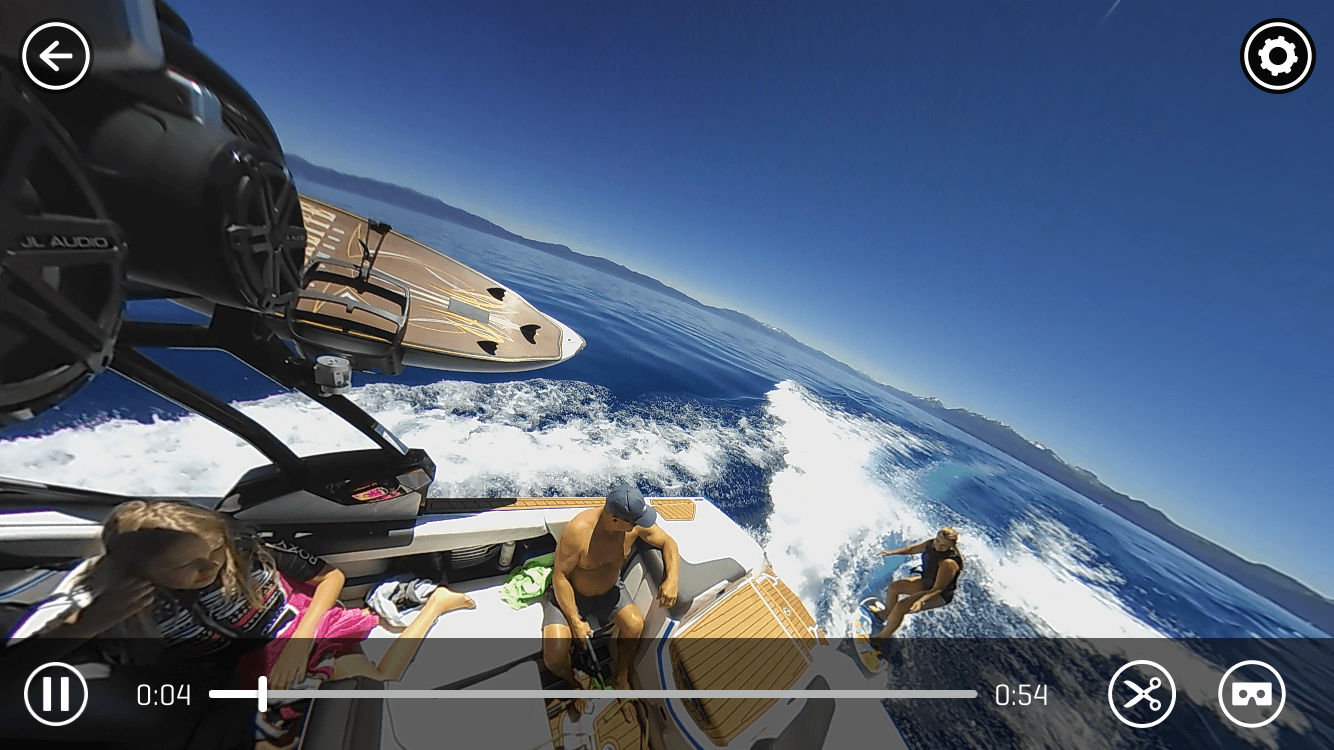
Use the playback bar at the bottom of your screen to pause/restart a video or fast-forward/rewind to a desired point within your video file.
You can adjust your video player’s settings by selecting the “Settings” icon  located at the top-right of your display. Under this menu, you have the option to toggle your phone’s gyroscopic panning feature on/off or remove the app’s graphics/overlays from view during playback. The settings menu also features the option to invert your video file, allowing you the ability to switch videos that were recorded upside-down to the correct viewing orientation.
Virtual Reality Goggle Playback
360fly HD footage is designed to work seamlessly with most Google Cardboard VR viewers with just the touch of a button.
To watch your footage using a Google Cardboard viewer, just tap the VR viewer icon  located at the top-right while you’re in the video player screen. Next, simply place your smartphone into your VR headset and immerse yourself inside the incredible world of 360fly HD content.
General Camera Settings
Adjust your camera controls and general system settings by pressing the "Settings" icon located at the top-right of your display screen. Under this menu, you can check your camera’s battery life, memory capacity, and make changes to your camera’s name and password. The "Settings" menu also gives you the power to turn off your camera directly from the application.
The team at 360fly is always working to provide the latest features and camera software upgrades. Be sure to use the "Settings" menu to periodically check for new updates to your camera’s software and new available features.
Image Tuning
The 360fly HD default settings are optimized to deliver the highest quality output within a wide range of environments and lighting conditions. To get the most out of your videos and images, the 360fly HD offers advanced options that will allow you to fine-tune your camera’s settings.
To access your camera’s fine-tuning options, tap the “Camera Tuning” icon  located at the bottom right of your display screen. A set of sliders will appear on screen, giving you options to make adjustments to the following tuning settings:
Saturation: Use the  slider to adjust the intensity of the colors captured within your footage.
Brightness: The  slider fine-tunes the brightness of the subjects within your image without affecting your camera’s exposure compensation.
Exposure: Adjust the  slider to tune your camera image sensor’s sensitivity to light. For brighter environments (i.e. direct sunlight), use a lower exposure setting. Apply an increased exposure setting for darker environments. The slider also allows you to lock in a specific setting and override the camera from automatically adjusting to varying light conditions. The lock remains in place until you manually turn it off or the camera is powered down.
Contrast: Increase the  setting to achieve a more vivid picture or lower the setting to deliver a slightly flatter appearance.
Editing and Sharing Content
If you haven’t already, you will need to download your desired file from your camera library into your smart device’s memory in order to access the 360fly app editing and sharing features.
You can access your camera’s library by selecting the “On My Camera” icon to view your camera’s storage library. After locating your selected video, tap the download icon to begin the file transfer process.
From the app’s main menu screen, select the “On My Phone” tab  to view your stored content within your phone’s memory.
Select the video that you would like to edit to launch the file. As the video begins to play, tap the scissor icon  to enter into edit mode. There are three tools that enable you to edit and share your 360° footage: Clip Capture, Watch Me, and Still Capture.
 Clip Capture: Edit and share your clips in their native 360° format. Select this tool to trim your video by picking the parts of your 360° footage that you want to edit, store, and share.
After launching "Clip Capture", select the “Play” icon to start playing the video. At the location that you would like to begin your clip, press the icon to start capturing. You will notice a green status ring around the icon indicating the time you have left in your capture session. You can record up to five minutes in one session.
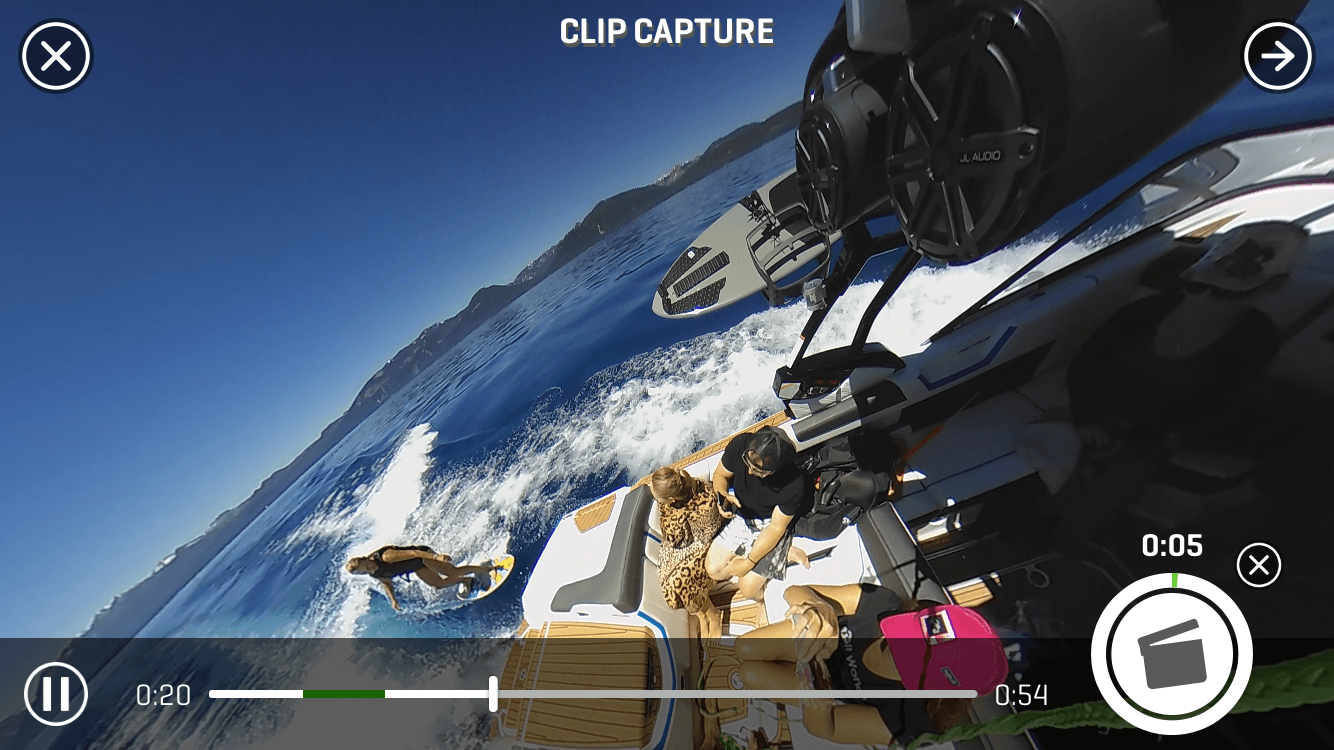
Press the icon again to stop your clip. You can start and stop multiple times to create one continuous clip with multiple segments.
Once you have captured your video, press the “Done” button in the top-right corner and allow a few seconds for your video to process.
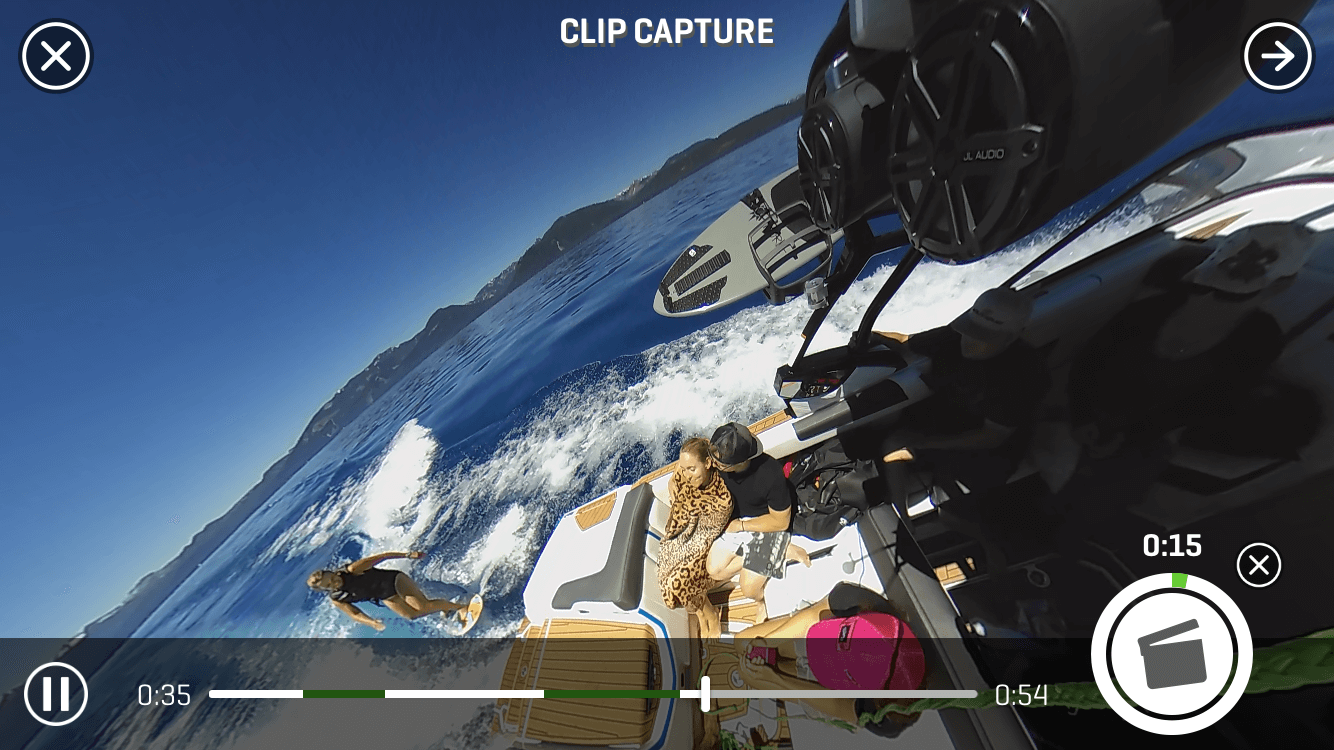
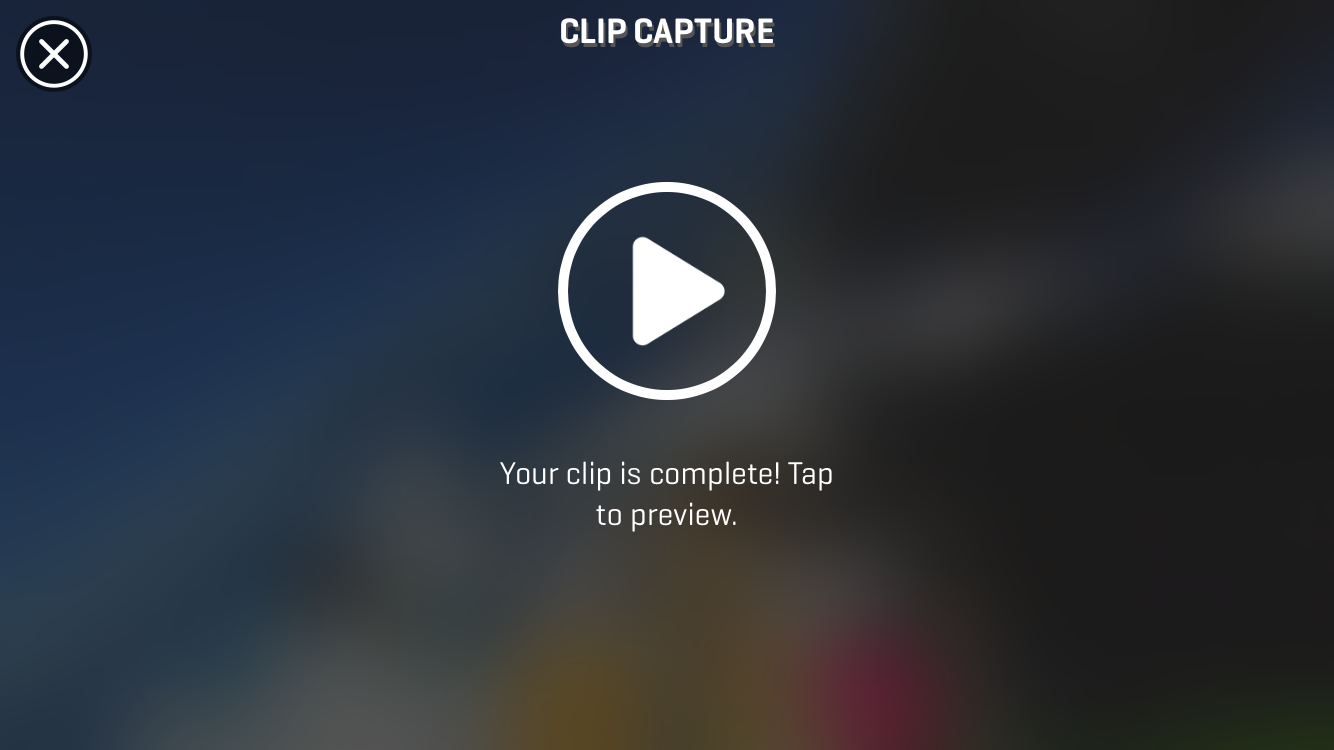
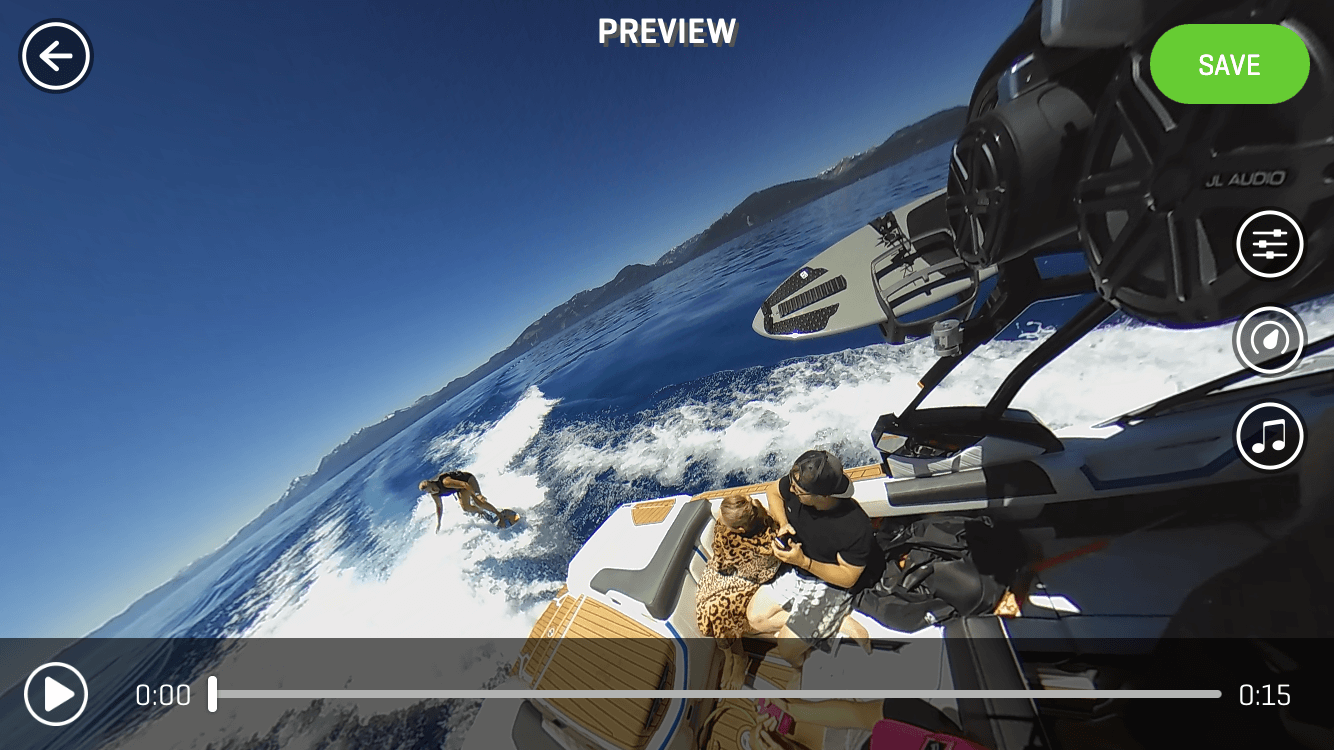
Once your video completely processes, you can click to preview. In the "Preview" menu you’ll have the ability to add music, color filters, or apply slow and fast motion to the video, to create an awesome, fully immersive 360° clip. See below for more details on adding "Music", "Filters", and "Playback Speed Adjustment".
 Watch Me: Create a standard 16:9 ratio clip from your original 360° footage. Use the "Watch Me" tool to record your movements as you pan left and right within the video. Wherever you swipe, shift and zoom while capturing in this mode, the resulting output will be cropped and saved as a shareable 16:9 video clip; capturing your unique point of view, ready to share with the world.
After launching the "Watch Me" tool, select the “Play” icon to start reviewing your video. At the location that you would like to begin your clip, press the icon to start capturing. You’ll notice a green status ring around the icon indicating the time you have left in your capture session. You can record up to 10 minutes in one session.
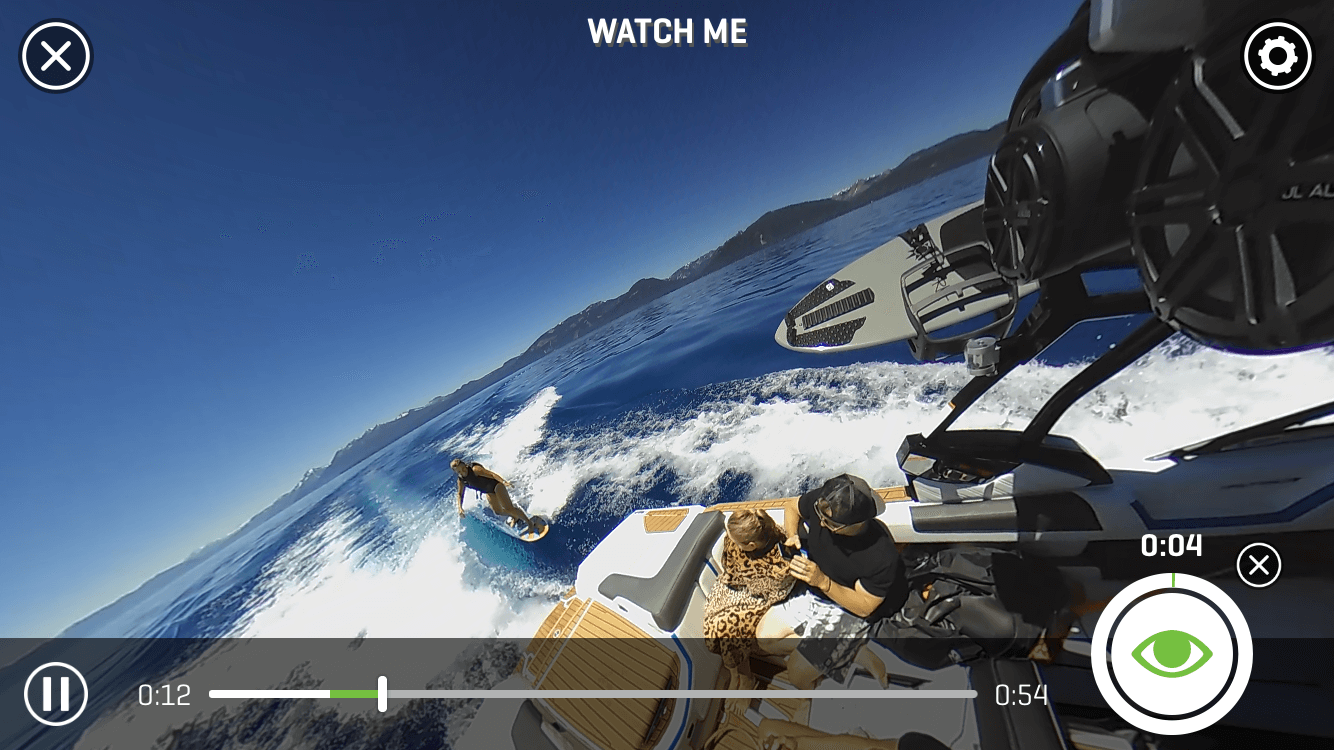
As your video is recording, move the point of view by panning right, left, up, and down with your finger or by physically moving your device to pan via the gyroscope. Your resulting video clip will capture your point of view by following all of your movements.
You can also use the "AutoPilot" mode to automatically adjust the point of view within your clip by selecting the  icon in the top right corner of the screen. "AutoPilot" will pan the point of view within your clip by automatically selecting the area within the video that contains the highest degree of activity.
When you’re done recording, click on the icon to stop recording. You can start and stop multiple times in various locations of your video file to create a single clip.
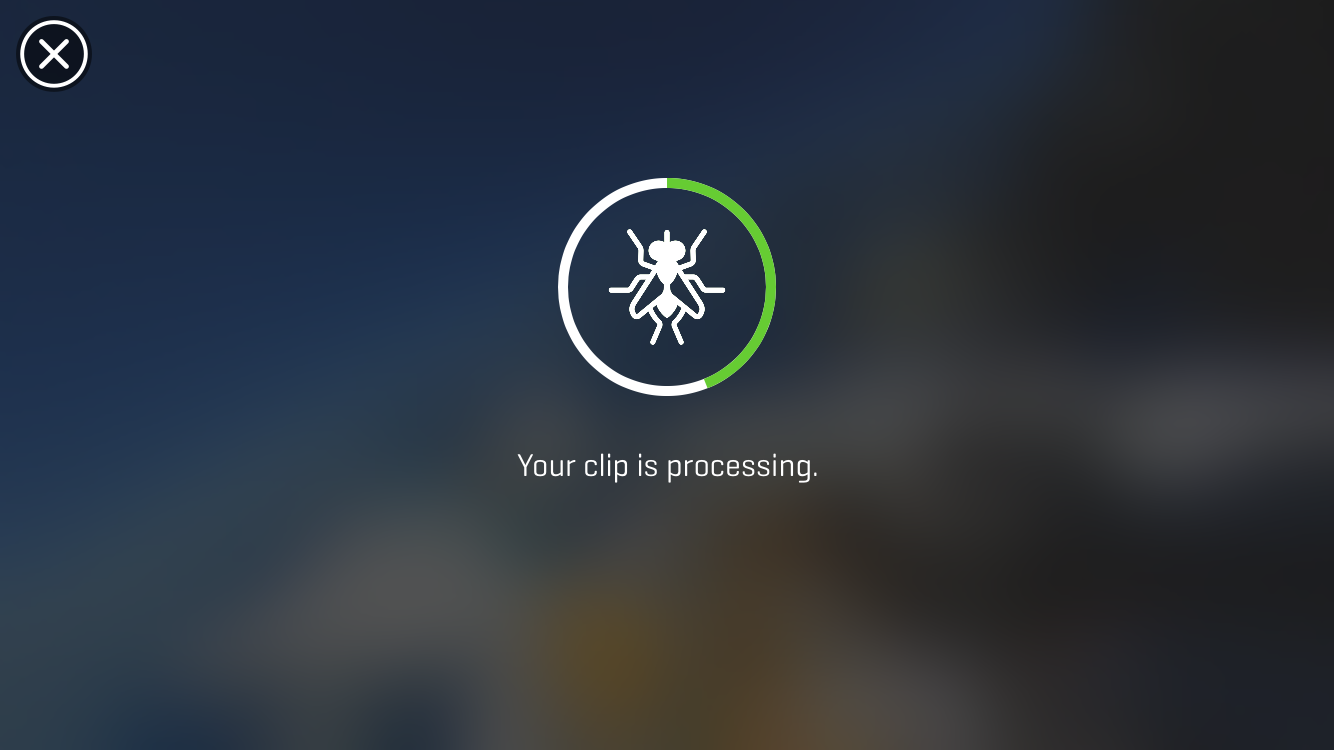
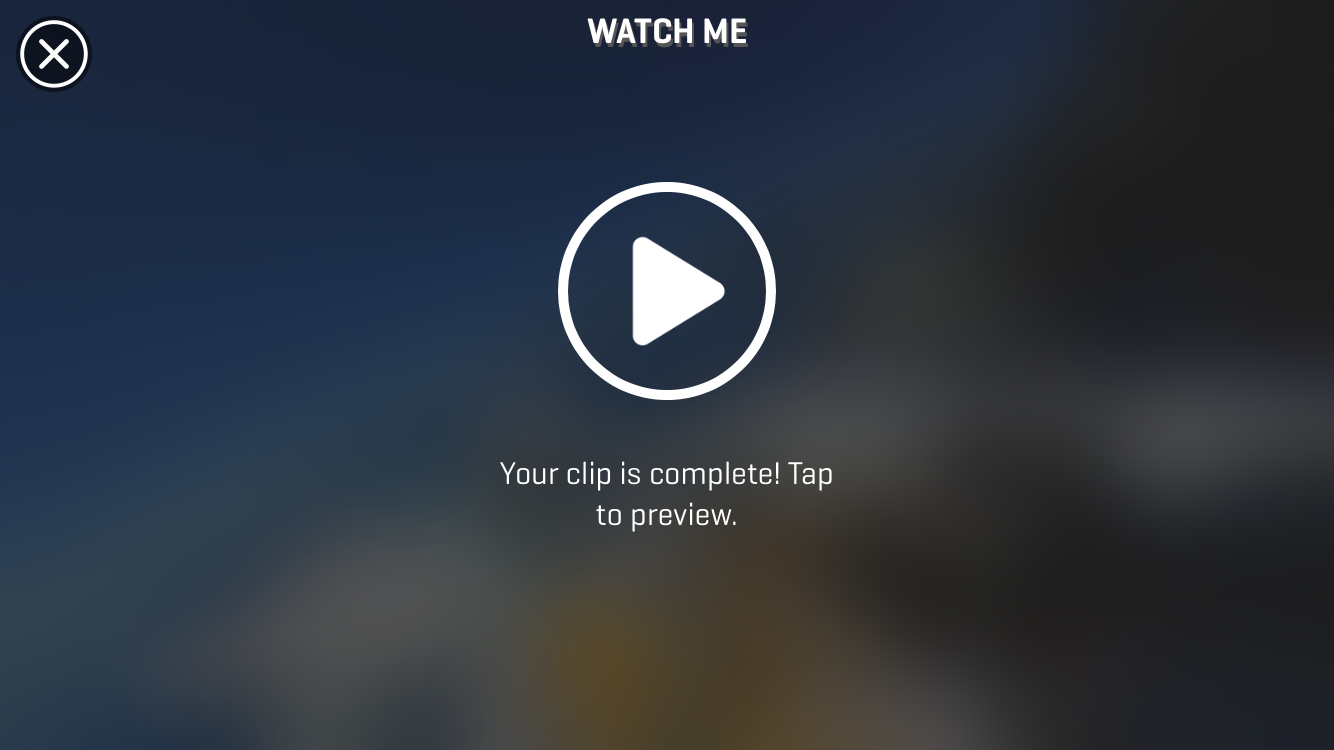
When complete, click on the “Done” button and allow a few seconds for your video to process. You can now add some special effects like music, slow/fast motion, or change the image filter to apply a unique color scheme to your clip. See below for more details on adding "Music", "Filters", and "Playback Speed Adjustment".
Note: Your app will remain in "Preview" mode after making adjustments to your clip until you select the “Save” button in the top right corner of your display. Once you have clicked the “Save” button, you’ll be prompted to name your "Watch Me" masterpiece and add a description.
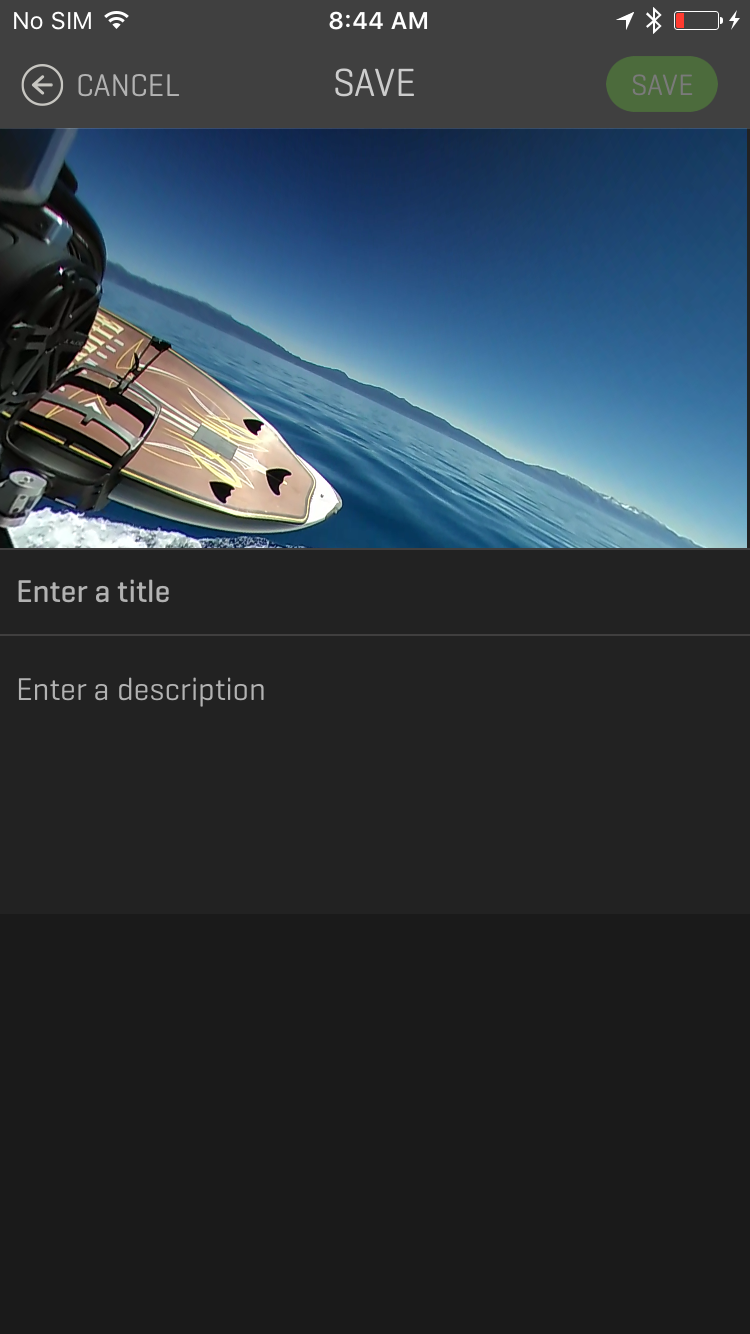
Your "Watch Me" videos are stored in your Android “Movie” folder and can be viewed on your phone and shared to social media sites in the same manner as any other movie file stored on your phone.
Adding Filters: Tap the  icon to select from an array of filters and color enhancements for your video clip. After selecting, you’ll see a preview of the filter applied over your footage. When you’ve decided on the perfect filter, hit “Apply” to add it, or select the back arrow to return to the original, unfiltered file.
Playback Speed Adjustments: Tap the  icon to speed up or slow down a section of your clip. Select just a portion of your edit using the sliders on the playback bar, or select the full clip. You can slide the green bar back and forth to select the section of your video that you wish to adjust. Next, use the speed control bar to increase or decrease the playback speed faster or slower for that selection. As you adjust, you’ll see a preview of the playback speed adjustment applied to your footage. Once you’re happy with your selection, hit “Apply” to add your speed adjustment to your clip or select the back arrow to return to the original file.
Adding Soundtracks: Use the  option to add a track to your clip by selecting from an array of music options. You can choose between a 50/50 mix of music and your video’s ambient sound or 100% music. Toggle between the two to see which option you like best. Then, simply select the perfect track from our large library of free music and hit “Apply” to add it to your video clip.
Note: Your app will remain in "Preview" mode after making adjustments to your clip until you select the “Save” button in the top-right corner of your display.
Once you have clicked the “Save” button, you’ll be prompted to name your masterpiece and add a description. After saving you can elect to share your creation to your favorite social sites.

Note: Your device will need an internet connection to upload the video and post to your desired social networking sites. On some phones, if you are connected to the 360fly app, you’ll need to disconnect and re-establish your internet service prior to posting.
 Still Capture Mode: Create and export photos from your captured video moments. You’re the photographer—select an area within your video, capture, and then save a still image to your phone’s image gallery.
After launching the "Photo Capture" tool, you’ll be prompted to select your desired image ratio. Your app will allow you to select from 360° view, square, 16:9, or panoramic output for your photo capture.
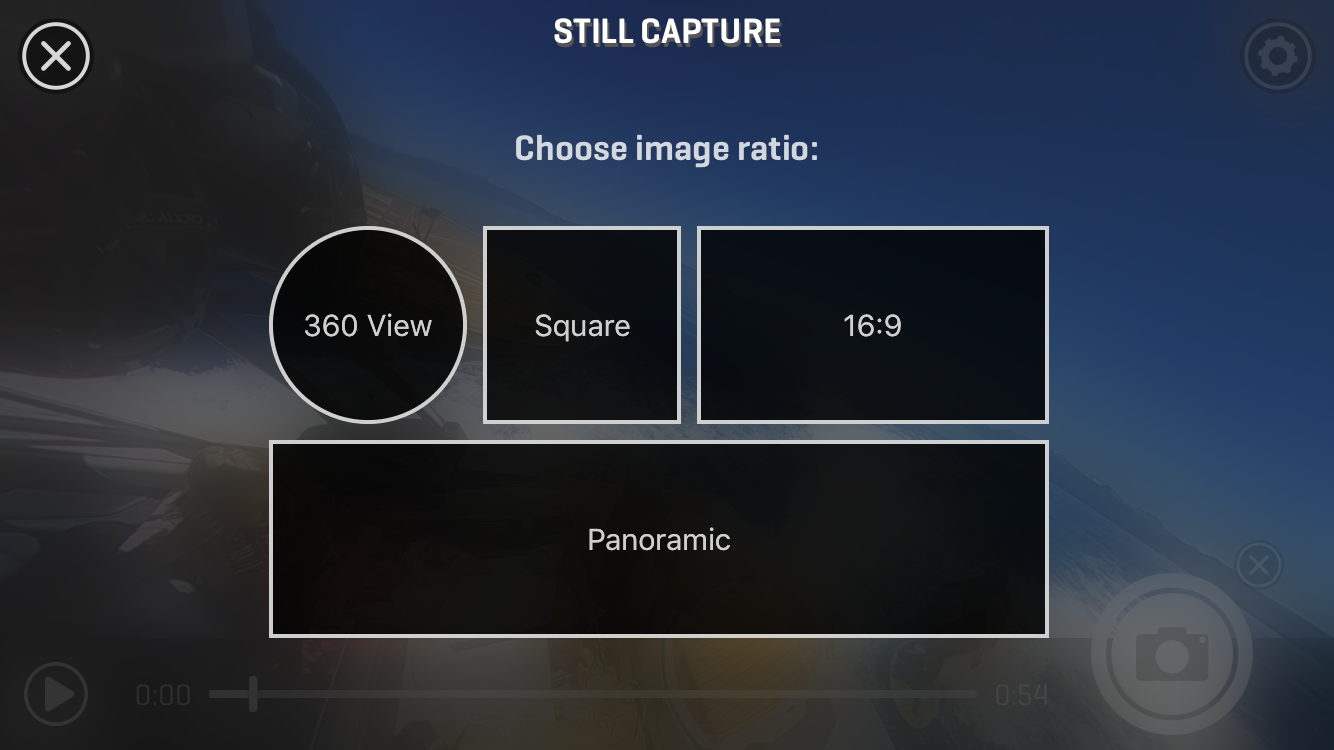
After you have selected your image size, press the “Play” icon to begin playing the video. Pause the video player at the location that you would like to capture your photo and align your image to the desired orientation. You can also pinch to zoom in or out for a closer view within your image prior to capturing your photo.
Tap the button to capture your shot. You will see a flash and hear a shutter click. Next, select from an array of filters and color enhancements for your new photo capture. Select and preview your desired filter and tap “Apply” to confirm it or click “None” if you do not wish to apply a filter. You can share your photo to any of your connected social media sites or store your image to your phone’s photo library in a .jpeg file format.
Live Streaming with Facebook
With the latest upgrade to the 360fly mobile app you can now instantly live stream your 360fly video to Facebook. Let your friends and family join the fun and experience all the action as you live without boundaries.
HOW IT WORKS
The 360fly Mobile application connects via WIFI to your 360fly camera to capture a live 360° video feed. This live video feed is then mixed with the live audio captured via the mobile phones microphone. The 360fly Mobile application converts the stream to the Facebook format to allow your friends and family to view a live 360° video stream instantly.
REQUIREMENTS FOR LIVE STREAMING
360Fly HD or 4K Camera: You can live stream at a resolution up to 1080 with the 360fly 4K camera. The 360fly HD camera will live stream at 720.
4G LTE Data Plan: Messaging and data rates charged by your wireless or internet service provider may apply as the live stream is transmitted over your mobile data network.
Android or iPhone Compatible devices: The live stream requires a device with a high power processor and 4G LTE data.
Android 5.0 or higher
iPhone 6 or higher
SET UP
STEP 1
Download/update the most recent version of the 360fly desktop and mobile app (available on Android and IOS).
This app is key to capturing your entire world in 360° 4K video. Just search 360fly in the App Store or Google Play and download it to your mobile device.
Launch the app and follow the tutorial to set up your camera and build your 360fly profile.
The app allows your mobile device to serve as your camera's remote and viewfinder, giving you the power to edit and share videos across social media platforms.
STEP 2
Launch the 360fly Mobile application and connect to your 360fly Camera via WIFI to acquire a live stream.
STEP 3
When ready to go live press the "LIVE" button.
STEP 4
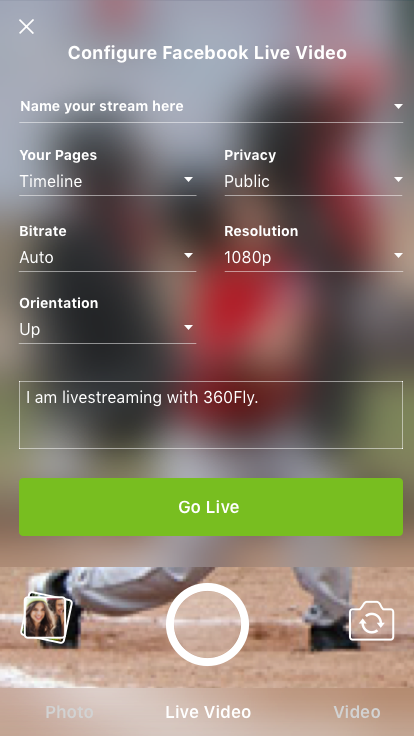
Choose the video resolution, camera orientation and which friends or pages you would like to live stream to.
STEP 5
Name your video and give it a description and tap the "GO LIVE" button.
STEP 6
That's it! You're live.
To stop your live feed, press the "STOP" button.
Note:For some Android devices, you may need to change the bit-rate setting from auto to a fixed value for best performance.
Transferring Content to Your PC:
Your 360fly HD camera doubles as a USB mass storage device when connected to your PC or Mac. To access your camera’s stored content, simply connect your USB cable to your computer and place your camera onto its power cradle. Locate your 360fly camera within your computer’s folder browser to view and transfer your files to your desktop or the desired file folder.
Troubleshooting
Resetting Your Camera:
On rare occasions, it may become necessary to manually reset your 360fly HD camera if it becomes unresponsive.
Your camera’s reset button is located inside the mount screw housing.
Using a skinny dull pointed object, such as a paper clip, gently press and hold the reset button down for 5 seconds. The camera will vibrate and the LED will flash blue during the reset process. After approximately 30 seconds, the LED will turn solid blue, indicating that your camera is now ready for use.
Note: Resetting will not delete videos stored within your camera’s memory.
Tech Support and FAQs
The 360fly team is always here to help. For all of your support needs, FAQ answers, or to report a bug, please visit us at www.360fly.com/support. Please be sure to check back regularly to learn more about new camera features and firmware upgrades.